E-Books & Audio Books

Sora is a digital E-Book & Audio Book application that families may choose to opt in or opt out of upon school registration in Skyward.
1. Log into ClassLink.
2. Search for Sora.
3. Log into Sora & Find your school.
4. Sign in.
5. Go to the Explore tab to borrow books or place on hold if checked out.
6. Go to the Shelf tab to see all of your books. From there you may open the E-Book checked out to read or Audio Book to listen to.
7. Select the Options tab to renew or return E-Books and Audio Books checked out.
8. Click below to check out Sora, our digital book library!

Watch the video to get started using Sora!
Sora Parental Controls
You now have the option to turn on Sora Parental Controls, which will allow you to see which books your student has checked out and block titles from being checked out, by logging into your child’s Sora account.
- To access Sora
- Download the free app on any device OR
- Go to https://soraapp.com/library/deerparktx.
- Your student’s login credentials are:
- Username: Last initial First initial ID # (Ex. lf123456)
- Password: 6-digit birthday (Ex. 053116)
- Tap on the menu (
 ) in the upper right corner.
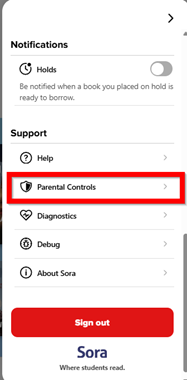
 - Scroll down to Settings > Support: Parental Controls.
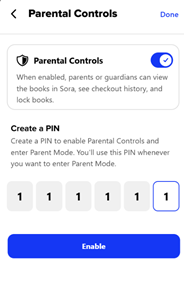
- Once Parental Controls are turned on, you can create a secure PIN to access Parent Mode. Parent Mode allows you to browse and search, just like your child would, and then lock or unlock titles.
- Locking a title prevents your student from borrowing or reading it in Sora, and unlocking it makes it available again.
- Exiting Parent Mode returns Sora to the student experience.
Please reach out to your student’s campus librarian if you have any questions or need assistance.